App
Library
Manage reusable agents and servers shared across eval configs.
What the Library Is
The library is a directory of shared YAML files — agents.yaml and servers.yaml — that MCPLab loads at startup. Library items are available across all eval configs without duplicating their definitions.
This is useful when you have a standard set of agents (e.g. one per model you test) or servers (e.g. staging and production endpoints) that you want to reference from many configs.
Loading the Library
Pass --libraries-dir when starting the App to point it at your library directory.
npx @inspectr/mcplab app --libraries-dir ./librariesLibrary Items in the UI
Library agents appear in the agent picker on the Run Evaluation page alongside agents defined in the selected config. Library servers appear in the server list when editing a config.
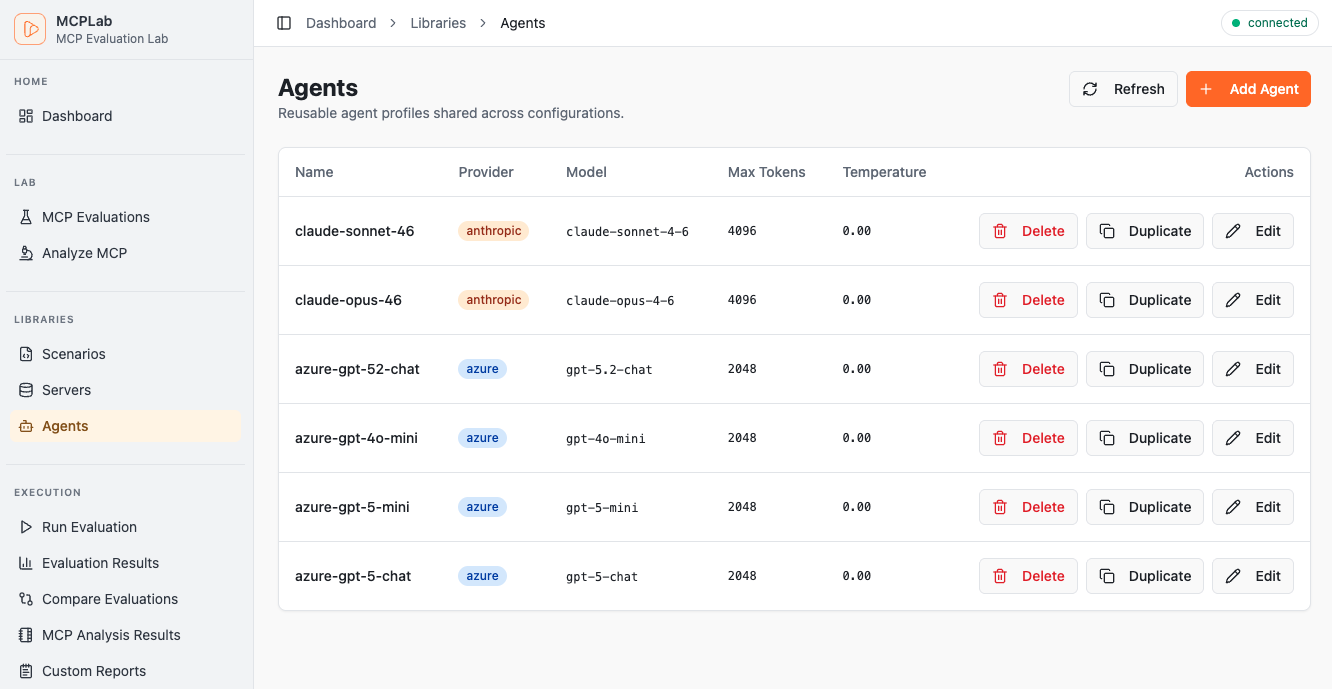
The Library section in the sidebar shows all loaded agents and servers with their full definitions. Browser agents are identified by type and can be used by Rover.
Configure Azure Foundry LLM Agents
Deploy a model that supports Foundry's v1 chat completions API. Copy its resource endpoint and API key into AZURE_FOUNDRY_ENDPOINT and AZURE_FOUNDRY_API_KEY on the MCPLab backend, then restart MCPLab. Use a resource URL such as https://your-resource.services.ai.azure.com; MCPLab appends /openai/v1/chat/completions. See Microsoft's v1 API documentation.
In Libraries, open Agents, create or edit an LLM agent, choose Azure Foundry under Provider, and enter your actual Deployment name. Each agent's model is its deployment name, so different agents can use different deployments on the configured resource. Save the agent to make it reusable in evaluations.
The dedicated AZURE_FOUNDRY_API_KEY takes precedence. If it is absent, MCPLab uses AZURE_OPENAI_API_KEY, which must belong to the same resource. AZURE_FOUNDRY_ENDPOINT is always required. Legacy azure_openai agents keep their existing endpoint, deployment, and API-version environment variables.
Optional AZURE_FOUNDRY_DEPLOYMENTS provides comma-separated deployment suggestions. Load configured deployments reads this backend variable; it does not query Azure. You can enter a deployment name manually without suggestions.
Foundry LLM agents can be used for evaluation runs, conversational assistants, and the Evaluation Judge. Choose a deployment that supports the tool-calling or structured-output capabilities your workflow requires. Microsoft-Decision-1 belongs in the separate Decision Engine configuration. This Foundry integration supports API keys and v1 chat completions; it does not acquire Entra tokens or use Responses API or native Anthropic endpoints.
AZURE_FOUNDRY_ENDPOINT=https://your-resource.services.ai.azure.com
AZURE_FOUNDRY_API_KEY=your-resource-key
# Optional suggestions shown by Load configured deployments:
AZURE_FOUNDRY_DEPLOYMENTS=my-chat-deployment,my-judge-deploymentfoundry-agent:
name: Foundry agent
provider: azure_foundry
model: my-chat-deployment
temperature: 0
foundry-judge:
name: Foundry judge
provider: azure_foundry
model: my-judge-deployment
temperature: 0Test an LLM Agent Connection
In the agent editor, click Test Connection to send a small inference request using the current provider and model or deployment, even before saving a new agent. It uses backend credentials, does not save the agent, and has a 30-second timeout. Anthropic, OpenAI, Azure OpenAI, and Azure Foundry are supported.
The Connection Test panel shows success or failure and request details. Changing the draft clears the result and cancels a pending request. Closing the panel or leaving the editor also cancels the pending test. Success confirms basic inference access; it does not prove that the deployment supports every tool or structured-output capability used by evaluations or judges.
For Azure errors, verify the resource endpoint, exact deployment name, key and resource access, model capabilities, and rate limits. This agent test is separate from Test connection in Decision Engine settings.
Managing Library Files
Edit agents.yaml and servers.yaml directly in your library directory. The App reads them at startup — restart the App after making changes to pick up updates.
For the YAML syntax for referencing library items from eval configs, see the CLI / Configuration documentation.