Rover
Run Evaluations
Run managed evaluations and use Rover's local queue in the active chat.
Choose a Workflow
- Use Run Evaluation in MCPLab when you want MCPLab to select the scenarios, assign them to a matching connected Rover, and save the run as a managed evaluation.
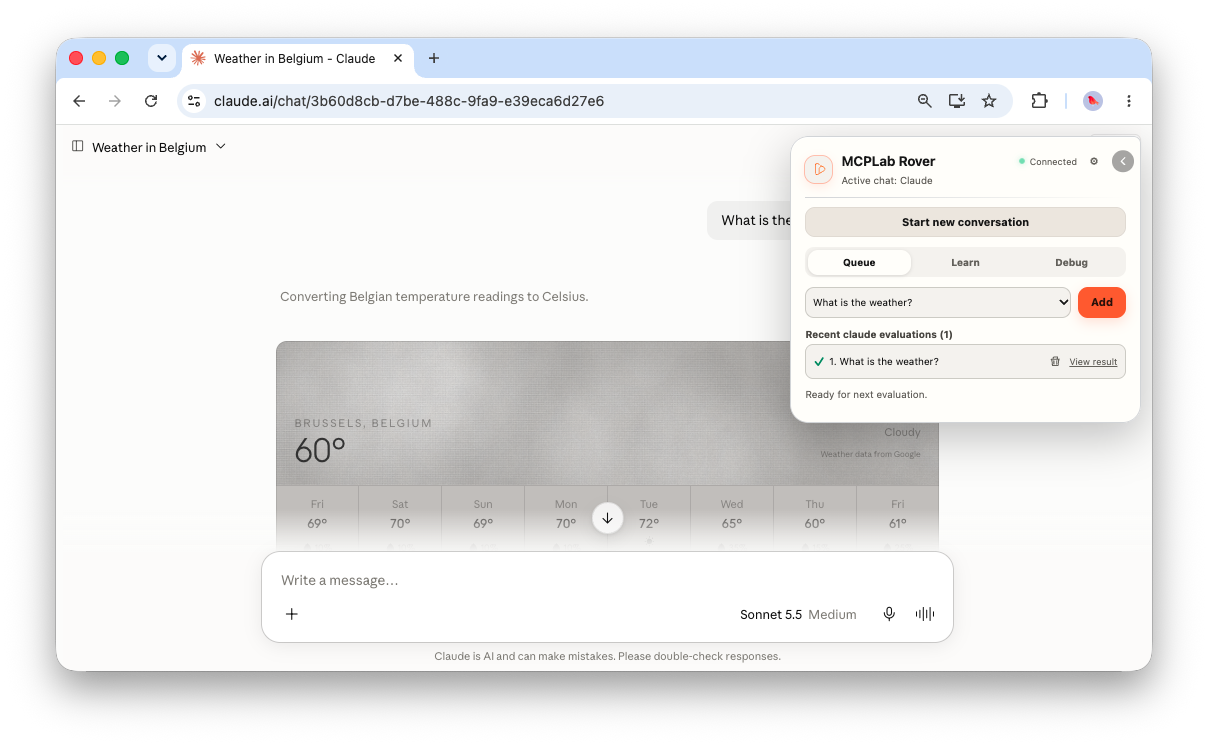
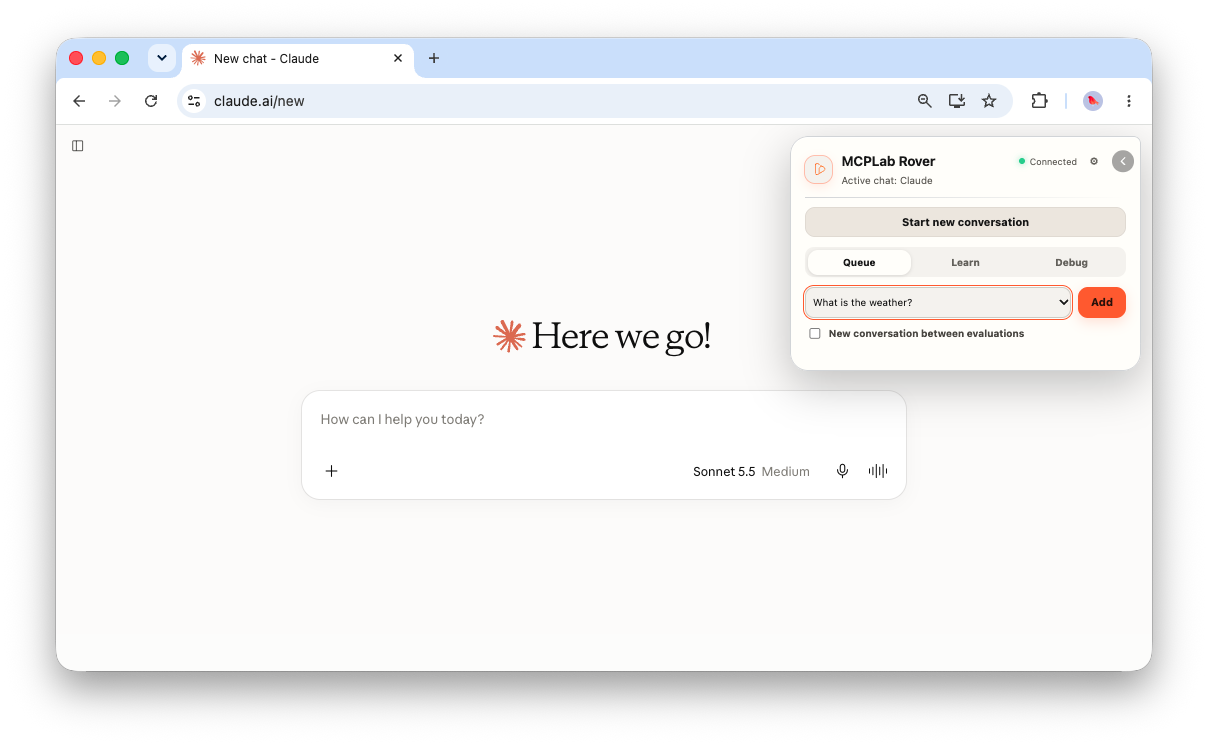
- Use the Queue tab in Rover to run evaluations from the active browser chat. Select an evaluation, click Add, then click Run queue.
Run an evaluation for MCPLab
Open Run Evaluation in MCPLab, select an evaluation and browser agent, then start the run. MCPLab-managed work waits in the central queue until a Rover connected to the matching provider is available.
If MCPLab is waiting for Rover, use Connect to Rover to open the configured agent page. Sign in if needed, then click the Rover toolbar icon. MCPLab delivers waiting work automatically when the matching provider is ready.
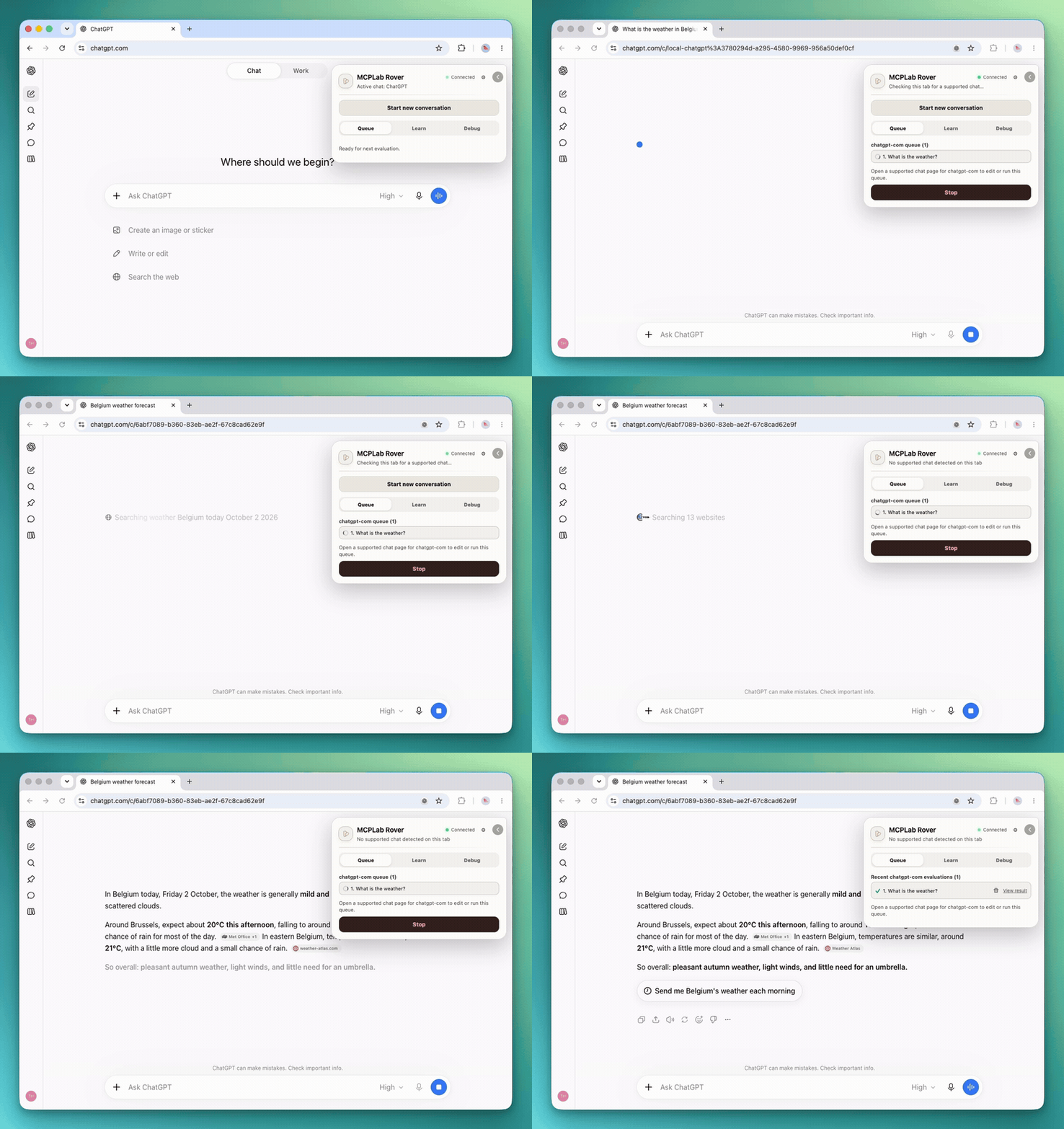
Rover accepts one assignment, runs its scenarios sequentially in the bound browser tab, and captures each newly created or changed assistant response.
MCPLab evaluates response assertions, judge assertions, and extraction rules, then saves the result through the normal pipeline.
Run an evaluation from Rover
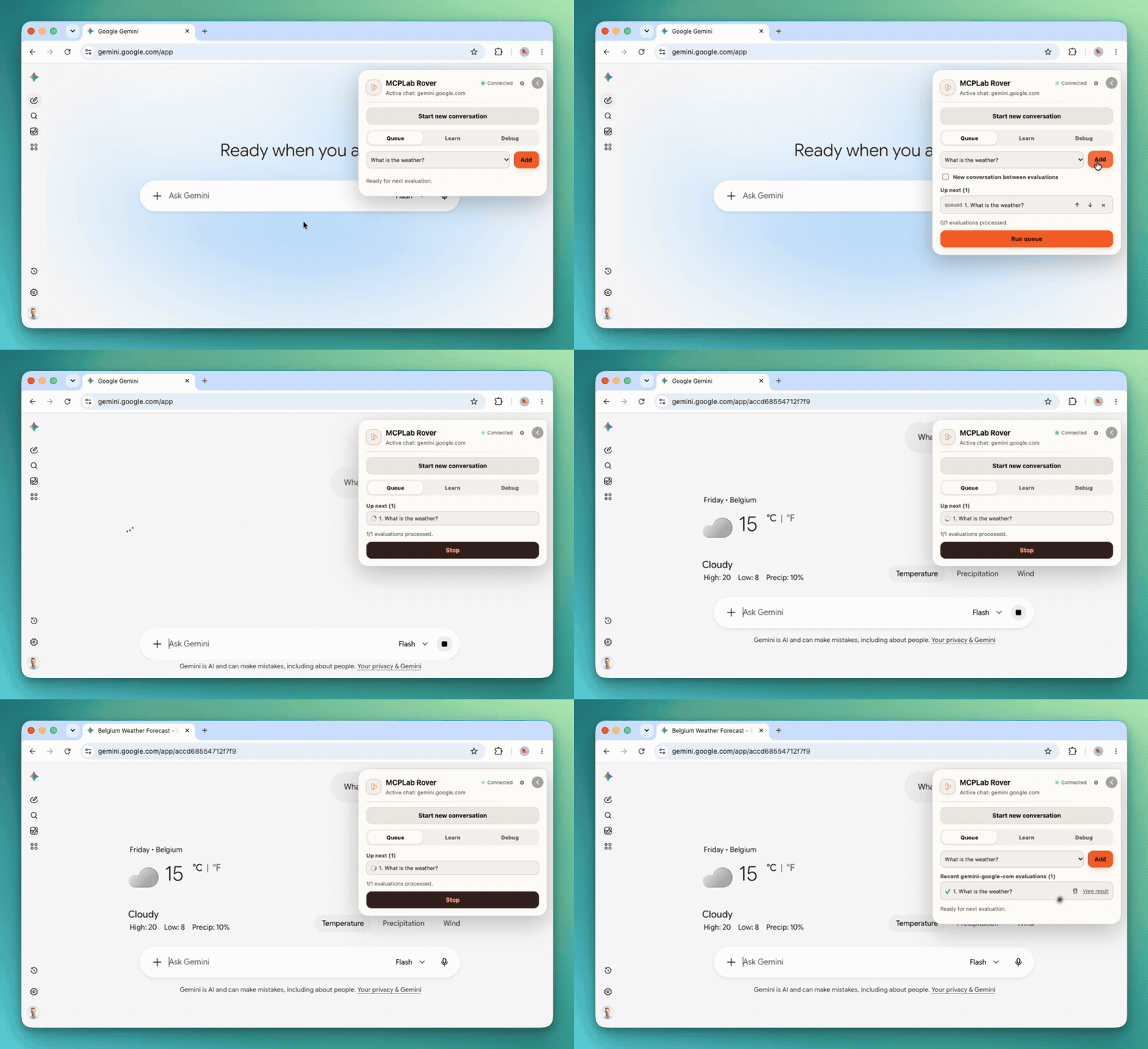
Open the Queue tab in Rover, select an evaluation from the catalog, and click Add. Click Run queue to submit its prompt in the active browser chat and send the captured response to MCPLab for evaluation. The recording below shows a one-item queue running with Gemini.
- Add more evaluations before starting to run them sequentially.
- Use New conversation between evaluations when each evaluation should start with a fresh chat.
- Use Stop to cancel an active queue.
- Evaluations with unsupported features, such as attachments, are unavailable in the Queue catalog.
Monitor and Control Managed Work
MCPLab shows browser jobs as waiting for Rover, running, paused, completed, stopped, or failed. Use Connect to Rover to open the configured browser URL when a matching provider is not connected.
- Waiting assignments are delivered automatically after a matching Rover connects.
- Paused Rover jobs require an explicit Resume action.
- Stop is available for waiting, running, and paused jobs.
- An accepted assignment remains bound to its original browser tab.