Rover
Learn Browser Providers
Teach Rover how to work with another compatible browser agent.
When to Use Learn
Use Learn when the browser provider does not already have a built-in MCPLab profile. MCPLab already includes profiles for claude and chatgpt-com, so you do not need to learn those providers unless you are creating a workspace override.
- Built-in
claudeandchatgpt-comprofiles do not create YAML files. Workspace files override a built-in profile when they use the same provider ID.
1. Start Learning
Open the browser provider page, click the Rover extension, select Learn, and click Start learning. If MCPLab already knows more than one provider profile for the page, select the profile you want to update. Otherwise Rover prepares a new provider profile.
Rover records the current page as a baseline and begins watching the browser interaction. It does not send the learning message for you.
2. Send and Capture One Message
Type and submit one message yourself in the browser. Wait until the assistant response is complete, then click The chat is done, capture it in Rover.
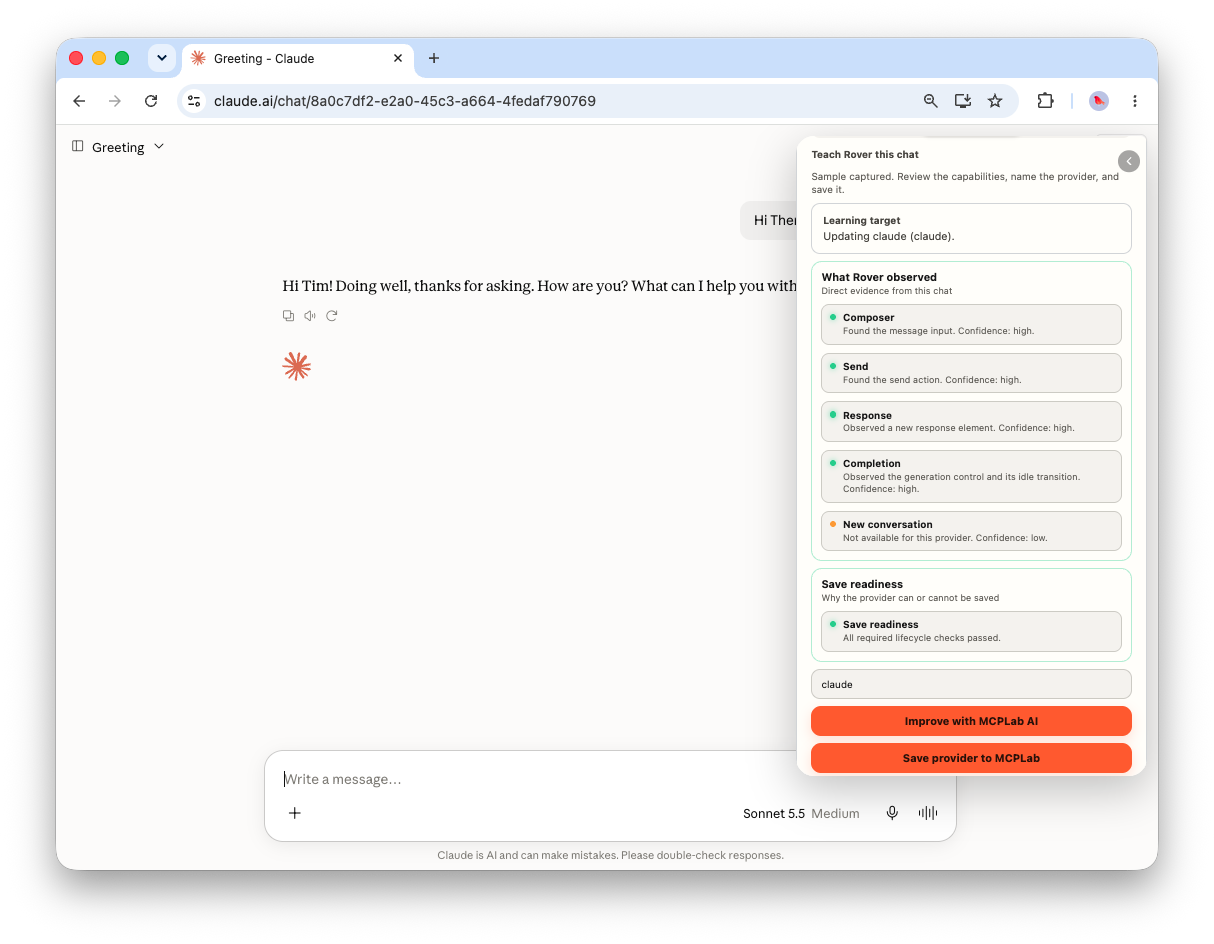
Rover observes the message composer, send action, new assistant response, generation or loading state, completion state, and any New Chat behavior it can confirm.
- Use a normal message that produces a real assistant response.
- Do not capture while the response is still generating.
- Learning observes one interaction and does not store the full response text.
3. Review the Captured Evidence
Review the What Rover observed section. Confirm that Rover detected the composer, send action, assistant response, and completion behavior. New conversation support is included only when Rover observes a real context change.
The captured profile is a draft. It is not yet saved to MCPLab and cannot be used for evaluations until it passes validation.
4. Improve the Profile with MCPLab
If the captured profile needs refinement, configure an Evaluation Judge in MCPLab, then click Improve with MCPLab AI. MCPLab sends the captured profile and a redacted interaction trace to the Judge for a proposal.
The proposal can adjust selectors or completion settings, but it must be based on the observed browser lifecycle. Rover displays which settings were kept, changed, or added.
5. Validate and Save the Provider
Rover replays the proposed profile against the original browser evidence. It checks that the selectors identify the same composer, send control, response, and completion states that Rover observed.
Save provider to MCPLab becomes available only when replay validation passes. Enter a provider name, then click Save provider to MCPLab.
MCPLab validates the profile, writes it to browser-providers/<provider-id>.yaml, creates or updates the linked browser agent in agents.yaml, and stores sanitized learning diagnostics.
- Do not save a profile from model output alone. Rover replay validation must pass first.
- A changed learned or workspace-overridden profile receives a new revision. MCPLab uses that revision to avoid assigning work to an outdated Rover profile.
6. Use the Learned Provider
Use the linked browser agent in your evaluation configuration, connect Rover to the matching provider page, and start the evaluation from MCPLab. MCPLab assigns the run only to Rover when the provider and provider revision match.
The Learn result confirms that Rover can operate the browser interface. It is not an evaluation result. MCPLab evaluates the browser agent's captured answer separately when you run a scenario.